Finding your way around
Régence is organized in three spaces, from the most general to the most precise. No need to memorize them — this page mostly serves as a map to come back to.
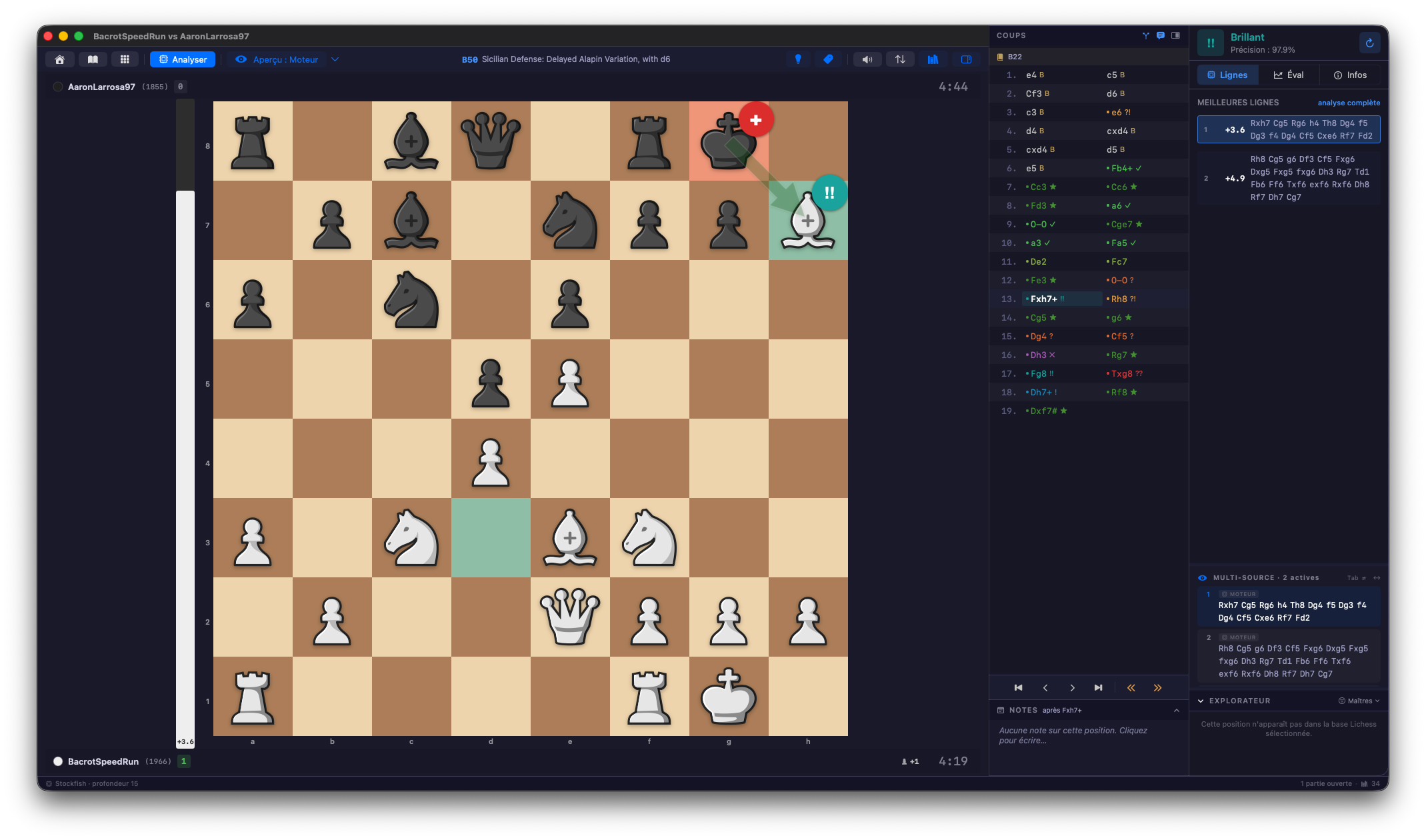 The analysis board: board, classified move list, analysis panel.
The welcome hub
The window that opens at launch. It gathers the starting points: open a game, create a new one, reach the library and the studies, import, and find recent games. The zone at the bottom accepts PGN files by drag and drop.
The hub reappears whenever the main window closes — it’s the app’s home base.
The main window
It has three zones, reachable at any time from the File menu:
| Zone | Role | Access |
|---|---|---|
| All games | The library — your imported, local and online games, with folders, tags and search | File > Browse games… (Cmd + Shift + I) |
| My studies | Your opening repertoires — creating, importing, training | From the hub, or the sidebar |
| Statistics | The dashboard — accuracy, openings, recurring traps | File > Statistics (dashboard + traps)… (Cmd + Shift + D) |
The analysis board
This is where everything happens. Around the board:
- The move list, with classification badges after analysis. Clicking a move brings the board there;
←/→navigate. - The analysis panel on the right (
Cmd + Option + Ito show or hide) — three views: the engine lines, the evaluation graph, and the game info. - The status bar at the bottom — engine state and the background analysis queue.
The Game menu gathers actions on the open game (flip the board Cmd + F, copy the PGN Cmd + Shift + C, the FEN position Cmd + Shift + F…), the Analysis menu the analysis actions.
Settings
Régence > Settings… (Cmd + ,) opens the preferences, in six tabs: Accounts (Lichess, chess.com), Analysis, Display, Sounds, Shortcuts and Storage. The Settings chapter walks through them.